


You know the tool you need exists. You just cannot remember which group it lives in. The search bar solves that in a few seconds.
This guide shows you how to search, how to use the right-hand column as a side panel, and what to do when a search comes back empty.
Use the Search Bar
- Look at the top of the cPanel page for the search bar.
- Click it and type the tool name, or a keyword such as “backup” or “email”.
- Click the result you want from the list.
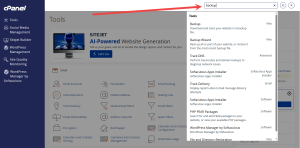
Start with one or two words. If the list is long, add another word to narrow it down.
Use the Right-Hand Column as a Side Panel
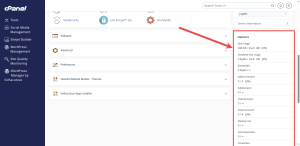
The Jupiter home page does not have a side menu like some control panels. The right-hand column works like one, though. It stays on screen while you browse, so you can check account details without opening a new page.
Two panels live there.
- General Information shows your username, your primary domain, and a link to Server Information.
- Statistics shows how much CPU, memory, and bandwidth your account is using.
Search by the Job You Want Done
If you do not know the official tool name, search for the job instead. Typing “PHP” brings up the tools that control PHP versions. Typing “password” brings up the password tools.
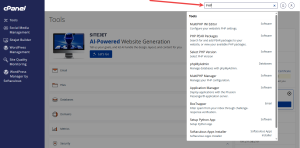
This method works well when you are following a guide and the name in the guide does not match what you see on your screen.
When a Search Comes Back Empty
- Check the spelling of the word you typed.
- Try a shorter keyword, such as “SSL” instead of “install SSL certificate”.
- Go back to the home screen and browse the groups by icon.
Browsing the groups is slower, but it always works. After a few visits, you will know where most tools live.
If you want a cPanel account where you can try these steps yourself, see HoganHost’s cPanel hosting plans.