


Logging into cPanel for the first time can feel like walking into a control room with no labels. Sound familiar? Once you know what the home screen is for, everything else in cPanel gets easier to find.
This guide covers how to log in, what each part of the home screen does, and how to get back home when you feel lost.
How to Log In
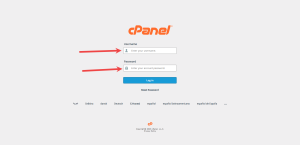
- Open your browser and go to your cPanel login page. This is usually your domain name followed by :2083, or the cPanel link in your HoganHost welcome email.
- Type the username and password from your welcome email.
- Click Log in.
Your cPanel password opens everything on your account. Keep it in a password manager, not in a notes app or on a sticky note.
What the Home Screen Shows
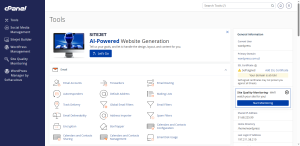
The home screen is the page you land on after logging in. It has two main parts.
The main area holds the cPanel tools, grouped into categories such as Domains, Files, Databases, Email, Metrics, Security, Software, Advanced, and Preferences. Click any icon to open that tool.
The right-hand column holds two panels, General Information and Statistics. These show your account details and how much of your server resources you are using.
How to Move Around
- Click any icon to open its tool.
- To return to the home screen, use the home link at the top of the page.
- Read each page before you press a button marked Delete or Remove. Those actions are hard to undo.
Open Your Account Menu
Your account name sits at the top right of the page. Click it to open the account menu. From there you can reach Account Preferences, Password & Security, Change Language, Contact Information, Reset Page Settings, and Log Out.
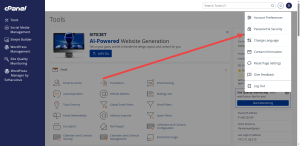
Always use Log Out when you finish, especially on a shared or public computer. Closing the browser tab alone may not end your session.
What Comes Next
The next three guides in this series cover the search bar, the settings and theme options, and the General Information panel in more detail.
Want a cPanel account to practice on? Explore HoganHost cPanel hosting plans and get a full account with the same home screen covered in this guide.