


Settings in cPanel are spread across a few places. Once you know where to look, changing your language, password, or screen style takes less than a minute.
This guide shows you the account menu, the theme settings, and the Preferences group on the home page.
The Account Menu
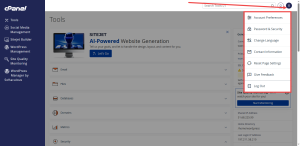
Click your account name at the top right of the page. The menu gives you quick access to these options:
- Account Preferences, for your general account settings
- Password & Security, for changing your password and security options
- Change Language, to switch the language cPanel displays
- Contact Information, to update the details cPanel uses to reach you
- Reset Page Settings, to return the home page layout to its default setup
- Log Out
Check Your Theme Settings
The theme controls how the cPanel screen looks and how it is arranged. The guides in this series are written for the Jupiter theme, so keep your account on Jupiter so your screen matches the steps.
- On the home screen, find the General Information panel in the right-hand column.
- Click the drop-down menu under Theme.
- Make sure Jupiter is selected.
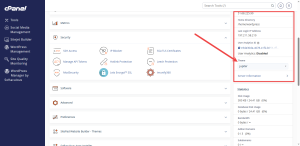
If your screen looks different from these guides, check this setting first.
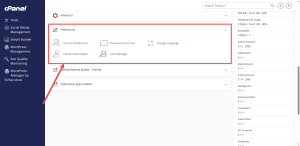
Use the Preferences Group
The Preferences group on the home page holds more account tools. These include password, security, and contact settings. The later guides in this series walk through each one, so you do not need to change anything here yet.
Save Your Changes Carefully
Most settings pages have a Save or Update button. Click it once, then wait for the confirmation message before you leave the page. Leaving too early can cancel the change without warning you.
If you are not sure what a setting does, leave it as it is and ask HoganHost support first.
Need help with your account settings? Contact HoganHost, and our team can walk you through them.