


A professional email address, like [email protected], does more for your brand than a free webmail address. It also gives every member of your team a clear, separate inbox. cPanel lets you create as many of these as your plan allows, all from the Email group.
This guide covers creating an account, setting its storage limit, and managing it once it exists.
Open Email Accounts
- Log in to cPanel.
- In the Email group, click Email Accounts.
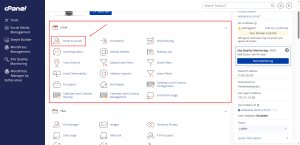
Create a New Account
- Click Create.
- If your account has more than one domain, choose the domain from the drop-down list.
- Type the username, which is the part before the at sign. For [email protected], type hello.
- Enter a strong password, or use the password generator. Save it before you continue.
- Set the storage space. Choose Unlimited to share your account’s total space, or enter a limit in megabytes.
- Click Create.
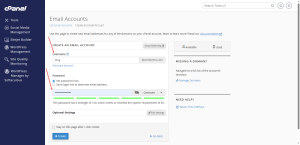
A limit of around 1,000 MB is a sensible starting point for most staff inboxes. You can change it later.
Check the Summary
The Email Accounts page shows how many accounts you have, how much space they use, and how many have forwarders or autoresponders. Use the tabs to find accounts that are close to their storage limit or have been suspended.
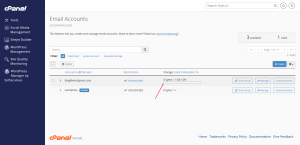
Manage an Existing Account
Find the account in the list and click Manage. From there, you can:
- Change the password
- Change the storage limit
- Suspend the account, which blocks sign-in without deleting anything
- Open Webmail to read the inbox in a browser
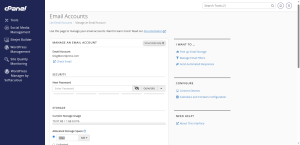
Delete Only When You Are Sure
Deleting an account removes its messages for good. Before you delete, download anything you need, or suspend the account first to see whether anyone notices. The Day 5 backup guide covers how to save your email settings.
Growing team? A business email plan from HoganHost can handle your staff’s inboxes from one place.