


Webmail lets you read and send email from any web browser, without setting up an app on your computer or phone. On most cPanel accounts, the webmail client is Roundcube. It runs in the browser and keeps your folders, contacts, and settings in one place.
Webmail is handy for checking mail on a shared computer or while you are away from your usual device.
Open Webmail
- Log in to cPanel.
- In the Email group, click Email accounts.
- Then click on the check email.
- Choose Roundcube if cPanel asks which webmail client to use.
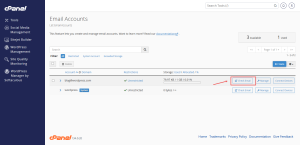
You can also reach webmail directly from the address bar of your browser, using the webmail address in your welcome email.
Sign In
Type the full email address, such as [email protected], and the password for that account. Use the password you set in the Email Accounts tool, not your main cPanel password, or click Open to automatically log you in.
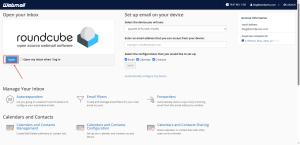
Get Around the Interface
The left side of the screen lists your folders, including Inbox, Sent, Drafts, and Trash. The main area shows your messages. The top toolbar has buttons for composing, replying, and deleting.
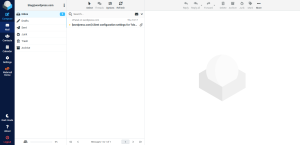
Use the Settings area to change your display name, signature, and language. A signature added here appears at the bottom of every message you send from webmail.
Sign Out on Shared Computers
When you finish, click Logout from the menu. Closing the browser tab alone may leave your session open. Never save your password on a shared computer.
Use Webmail Carefully
Webmail is convenient, but it is still your inbox. Check the sender before you open attachments or click links, especially in messages asking for passwords or payment details. Keep your browser and computer up to date.
Planning to run your team’s email from one place? Explore HoganHost’s business email plans for a setup that suits several users.