

When something goes wrong, a backup is only as useful as your ability to restore it. This guide shows you how to bring back your files and email settings with the Backup Wizard, and where to turn for the rest.
Before you start, know that restoring overwrites what is currently on your account. Files in the backup replace live files with the same names, so restore only what you need.
Know What You Can Restore Yourself
You can restore partial backups through the Backup Wizard. These include your home directory, your MySQL databases, and your email forwarders and filters.
Full account backups cannot be restored through cPanel. If you have one, contact HoganHost support so the team can restore it for you.
Step 1: Open the Restore Option
- Log in to cPanel.
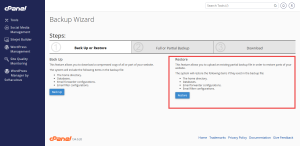
- In the Files group, click Backup Wizard.
- Click Restore.
Step 2: Choose What to Restore
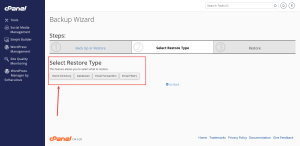
Select the type of content you want to bring back.
- Home Directory restores your website files.
- MySQL Databases restores your database content.
- Email Forwarders and Filters restores your mail rules.
Restore one item at a time, so you can check each result before moving on.
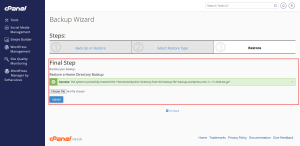
Step 3: Upload the Backup File
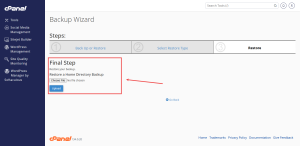
Click Choose File, select the partial backup you downloaded earlier, and then click Upload. Wait for the process to finish before you close the window or refresh the page.
Step 4: Check Your Site
Open your site in a private browser window. Check the main pages, the forms, and any database content such as product listings or posts. If something is still wrong, restore a different backup. Older copies are often the answer when the most recent one already contains the problem.
Restore Databases With Care
Restoring a database replaces the data it holds. If your site stopped working after a database change, restore the database from a copy taken before that change. Day 6 covers the database tools in more depth.
For a site that needs a faster recovery plan, look at HoganHost’s VPS hosting options, which give you more control over server-side recovery tasks.