

A backup is a saved copy of your website’s files, databases, and email settings. If a plugin update breaks your site, a hacker deletes a folder, or a server problem wipes data, the backup is what brings everything back.
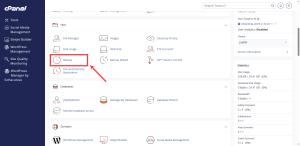
The tools for making backups sit in the Files group. This guide shows you the main options and where to keep the copies.
Know the Two Kinds of Backup
A full backup packs up your entire account into one archive. It includes files, databases, email, and settings. It is useful when you move to a new host.
A partial backup saves one part of your account at a time. The three partial options are your home directory, your MySQL databases, and your email forwarders and filters. Partial backups are the ones you will use most often.
Download a Partial Backup
- Log in to cPanel.
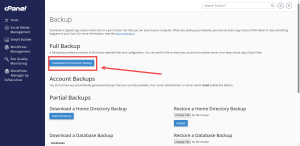
- In the Files group, click Backup.
- Under Partial Backups, click Home Directory to download your website files.
- Under Download a Database Backup, click the name of each database your site uses.
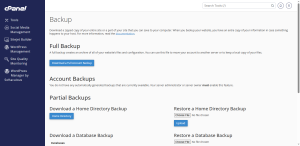
Your browser will save the files to your downloads folder. Large sites can take several minutes, so wait for the download to finish.
Download a Full Backup
On the same Backup page, find the Full Backup section and click Download a Full Account Backup. Choose the destination option, then download the file when it is ready.
Keep Your Copies Safe
A backup stored on the same account it protects is not much help if the account is lost. Copy your backups to a computer or cloud storage that you control. Keep more than one recent version, so you can roll back past a mistake that went unnoticed for a few days.
Do not leave large backup files sitting in your account for long. They use up the same disk space as your website, which the Day 4 guide covers.
Want a host that makes backups part of the plan? Compare HoganHost’s cPanel shared hosting plans to find one that fits your site.