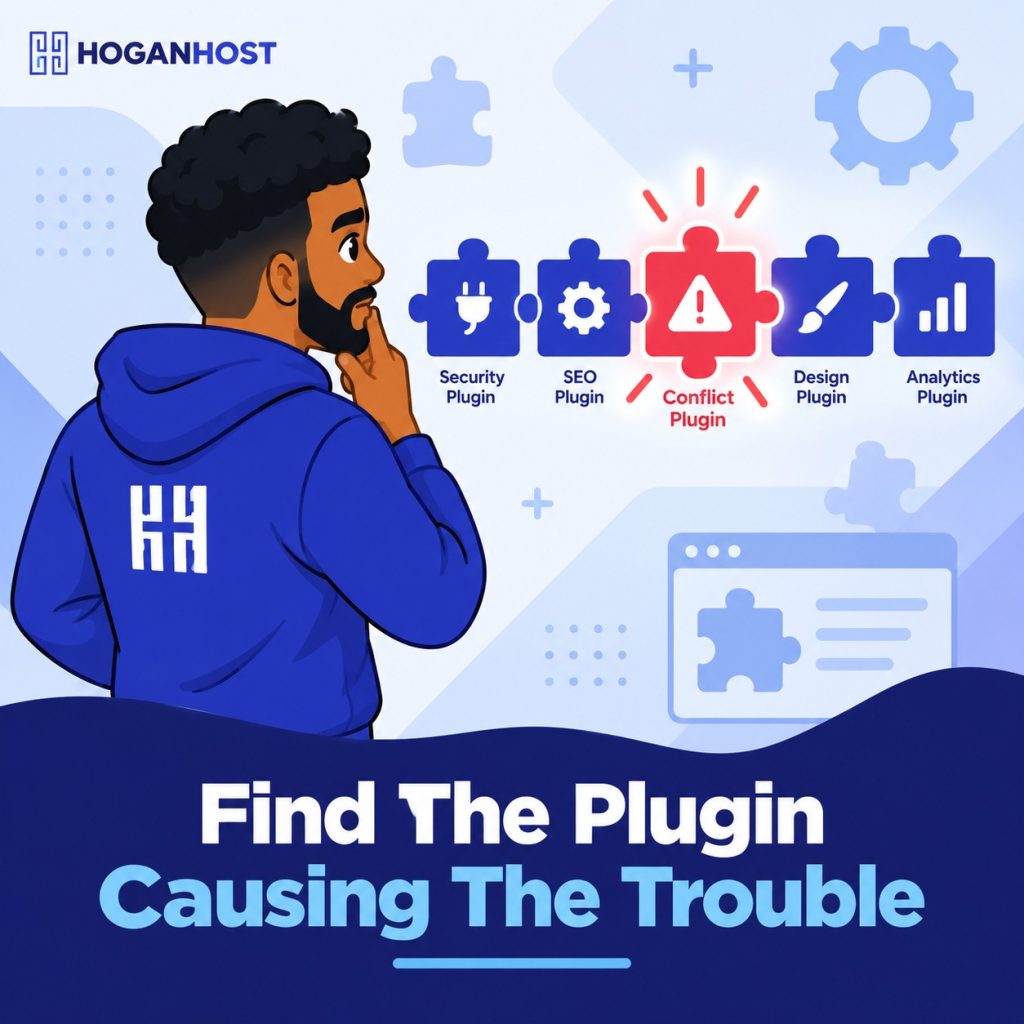
You install a new plugin, click Activate, and something on your site quietly breaks. A form stops working, a page turns blank, or the admin dashboard throws an error nobody asked for.
Plugin conflicts are one of the most common causes of WordPress problems, but they are also one of the more predictable ones once you understand why they happen.
Why Plugin Conflicts Happen
A conflict occurs when two or more plugins try to control the same scripts, stylesheets, or database elements in incompatible ways. This often surfaces right after installing a new plugin or updating an existing one, since that is exactly when previously stable code starts interacting differently.
Plugin conflicts are behind a large share of WordPress white screen errors, making them one of the first things worth checking whenever a site suddenly stops behaving normally.
Prevention Is Easier Than Fixing a Conflict Later
Choose Plugins Carefully
Before installing anything, check when the plugin was last updated and read recent reviews. A plugin abandoned by its developer years ago is a common source of conflicts with current WordPress versions.
Keep Everything Updated
Version mismatches between WordPress core, your theme, and your plugins account for a large share of plugin failures. Keeping everything on its current version, rather than letting updates pile up, closes off one of the most common causes of conflicts before they start.
Limit How Many Plugins You Actually Run
The more plugins a site runs, the higher the statistical chance that two of them will eventually interfere with each other. This does not mean every extra plugin is dangerous, but it is worth periodically reviewing your plugin list and removing anything you are not actively using.
Test New Plugins on a Staging Site First
Installing a new plugin directly on a live website means any conflict shows up in front of real visitors. A staging site, a private copy of your website used for testing, lets you catch problems before they ever reach the public.
Diagnosing a Conflict That Has Already Happened
Step 1: Back Up Your Site First
Before changing anything, create a backup. This gives you a way back to a working state if troubleshooting accidentally makes things worse.
Step 2: Check Your Error Logs
Your hosting control panel or WordPress’s own debug log often records the specific error, including which plugin was involved. This can point you straight at the culprit without any further guesswork.
Step 3: Deactivate All Plugins, Then Reactivate One by One
This remains the most reliable method for finding a conflict. Deactivate every plugin, confirm the issue disappears, then reactivate plugins one at a time, checking your site after each one. The plugin active at the moment the problem returns is almost always the source.
For a site with many plugins, a faster approach is a binary search, deactivating half of your plugins at once, checking whether the issue persists, then narrowing down from there rather than testing one plugin at a time.
Step 4: Use a Troubleshooting Mode If Available
Some tools let you disable all plugins for just your own admin session without affecting what live visitors see, which avoids taking your whole site offline while you investigate.
Step 5: Confirm the Conflict Against a Clean Setup
Once you suspect a specific plugin, test it against a default WordPress theme on a fresh installation if possible. This confirms whether the issue is genuinely the plugin itself or something more specific to your particular site setup.
When Two Essential Plugins Conflict With Each Other
Occasionally the conflict involves two plugins you genuinely need, and removing either one is not a real option. In this situation, reaching out to both plugin developers directly, or bringing in a developer to write a small compatibility fix, is usually more effective than continuing to troubleshoot on your own.
A Quick Reference Checklist
- Back up the site before making any changes
- Check error logs for clues before deactivating anything.
- Deactivate all plugins, then reactivate one at a time.
- Confirm findings against a fresh WordPress install if needed.
- Keep WordPress core, themes, and plugins updated going forward.
- Test new plugins on staging before adding them to the live site.
A Stable Hosting Environment Makes This Easier
Plugin conflicts are often made worse by an underlying server environment that is already stretched thin, since low memory limits and outdated PHP versions can turn a minor plugin clash into a full site crash. A properly configured hosting environment gives WordPress the resources it actually needs to run smoothly, even with a reasonable number of active plugins.
Ready for hosting that gives your WordPress site room to run without unnecessary strain? HoganHost’s hosting plans are optimized for WordPress, helping reduce the resource pressure that so often turns a small plugin conflict into a bigger headache.