
You click a link. You wait. You wait a little more. Then you close the tab and go somewhere else.
That is exactly what your own visitors do when your website drags its feet. A slow website is not just annoying; it is quietly costing you customers, sales, and search rankings every single day.
Why Speed Matters More Than Most Business Owners Realize
Google now judges websites on three specific speed and stability measurements known as Core Web Vitals. The main one for loading is called Largest Contentful Paint, or LCP, and the target for a “good” score is under 2.5 seconds for your main content to appear on screen.
Miss that target and two things happen at once. Visitors start leaving before the page even finishes loading, and Google quietly ranks you lower against faster competitors.
Step 1: Actually Measure Your Speed First
Before fixing anything, find out how slow your site really is and why. Guessing wastes time.
Use a free tool like Google PageSpeed Insights or the Core Web Vitals report inside Google Search Console. These tools show your real Largest Contentful Paint, your responsiveness score (Interaction to Next Paint), and your visual stability score (Cumulative Layout Shift), based on how actual visitors experience your site rather than a lab test on a fast office computer.
Pay close attention to your mobile scores specifically. Most Nigerian visitors browse on mobile data, and mobile scores are almost always worse than desktop scores.
Step 2: Check Your Hosting First, Not Last
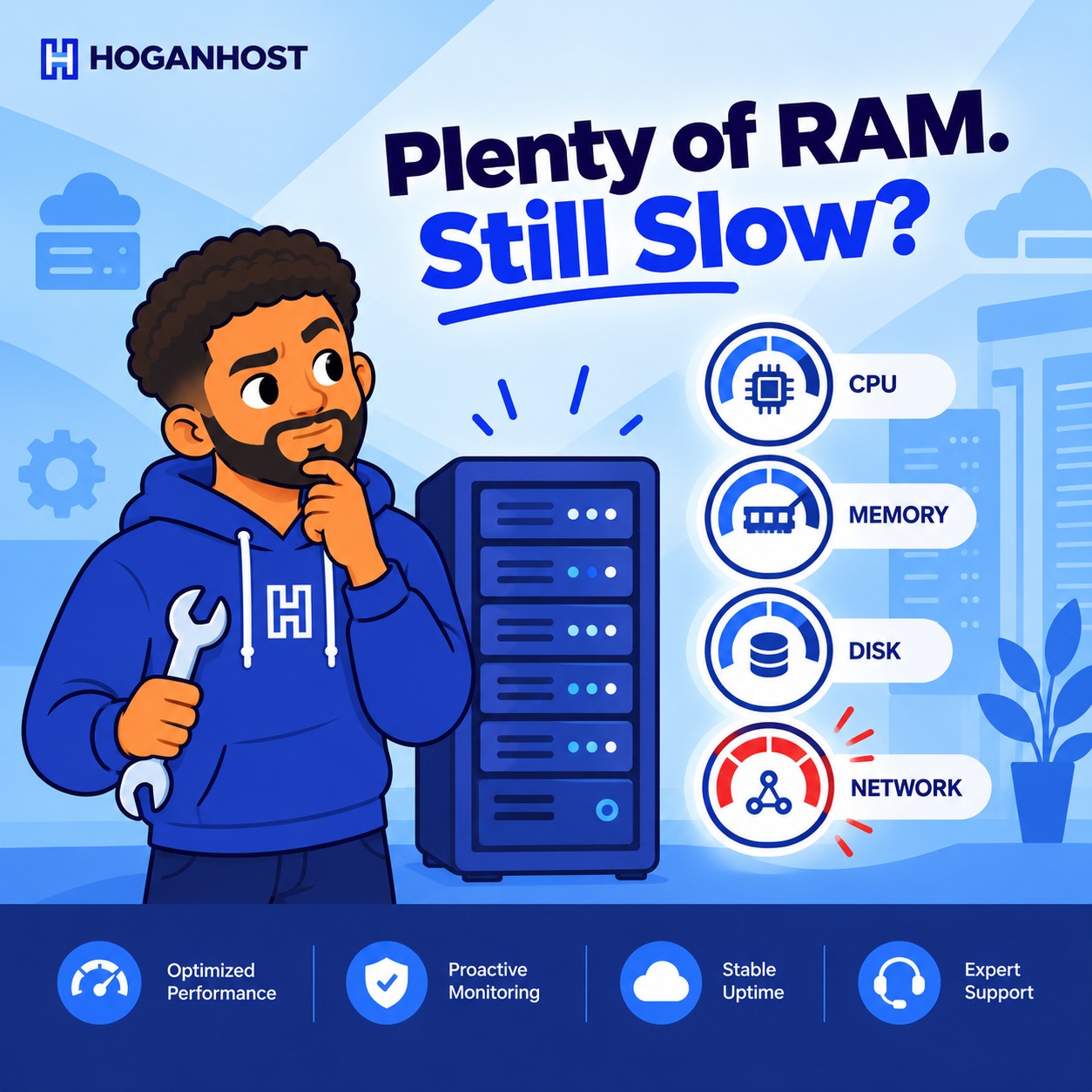
Here is something a lot of website owners overlook. Before you touch a single image or plugin, ask whether your hosting itself is the bottleneck.
A slow server response time, sometimes called Time to First Byte, sets the floor for how fast your entire site can load. If your server takes a long time just to respond to the first request, no amount of image compression will fully fix your load times, because you have already burned through a chunk of your speed budget before the browser even starts rendering anything.
Signs your hosting might be the real problem:
- Your site is slow even on a simple page with almost no images.
- Speed test tools flag “server response time” as a major issue
- Your site slows down noticeably during busy hours, suggesting the server is overloaded.
- You are on the cheapest possible shared plan, and your traffic has grown since you signed up.
If any of these sound familiar, moving to a hosting plan with more resources, SSD or NVMe storage, and a properly configured server often delivers a bigger speed jump than hours of manual optimization.
Step 3: Compress and Resize Your Images
Oversized images are the single most common cause of a slow homepage. A photo straight from a phone camera can be five to ten times larger than it needs to be for web display.
Fix this by:
- Resizing images to the actual dimensions they display at, not the original camera resolution
- Compress images using a tool before uploading them
- Using modern formats like WebP, where your platform supports it, since these load faster than older JPEG or PNG files at similar quality
Step 4: Turn On Caching
Caching stores a ready-to-serve version of your page so the server does not have to rebuild it from scratch for every single visitor. This alone can cut load times dramatically on content-heavy sites.
Most modern hosting control panels include a built-in caching option, and WordPress sites can also use a caching plugin for extra control.
Step 5: Reduce What Loads Before The Page Is Usable
Every script, font, and stylesheet your page loads before showing content adds delay. This is often the hidden cause behind poor responsiveness scores.
Practical fixes include:
- Removing plugins or scripts you are no longer actively using.
- Loading non-essential scripts after the main content, not before it
- Limiting the number of custom fonts and external tools running on a single page
Step 6: Fix Layout Jumping
If buttons, images, or text shift around as your page finishes loading, that counts against your visual stability score and frustrates visitors trying to click something.
The usual cause is images or ad spaces without a set size, so the page has to resize things after the fact. Setting explicit width and height values for your images solves most of this.
Step 7: Use a Content Delivery Network If Your Audience Is Spread Out
If your customers are scattered across different cities or countries, a content delivery network stores copies of your site closer to each visitor, cutting the distance data has to travel and speeding up load times noticeably.
Common Mistakes That Undo Your Progress
- Installing too many plugins “just in case.” Every inactive plugin still adds weight in most cases.
- Uploading full-resolution images is faster than resizing them. This trades your time for your visitors’ patience.
- Fixing desktop speed and ignoring mobile. Most of your traffic is likely mobile, and Google evaluates both separately.
- Testing once and assuming the fix is permanent. New content, new plugins, and growing traffic all affect speed over time, so recheck periodically.
A slow website is rarely one single problem. It is usually a combination of weak hosting, oversized images, and unnecessary scripts stacking up over time. Fix the hosting foundation first, then work through the rest of the list, and you will notice the difference in both visitor behavior and your Google rankings.
If your current hosting keeps showing up as the bottleneck in your speed tests, it might be time for an upgrade. Compare HoganHost’s SSD-powered hosting plans and give your website the foundation it needs to actually load fast.