
Your domain transfer keeps stalling, and the culprit is almost always the same thing. A small lock setting sitting quietly in your registrar dashboard, blocking the entire process before it can even begin.
Here is everything you need to know about domain locks and how to unlock yours properly.
What A Domain Lock Actually Does
A domain lock, technically shown in a WHOIS record as clientTransferProhibited, is a protective setting most registrars apply by default. It prevents unauthorized transfers, meaning nobody can move your domain to a different registrar without you specifically disabling this lock first.
This protects you from someone maliciously transferring your domain away without permission, but it also means you must remember to disable it yourself before initiating any legitimate transfer of your own.
Step 1: Confirm Your Domain Is Actually Locked
Before assuming this is your blocker, run a WHOIS lookup on your domain and check its current status. If you see clientTransferProhibited listed, your domain is locked and needs to be released before a transfer can proceed.
Step 2: Log In To Your Current Registrar’s Dashboard
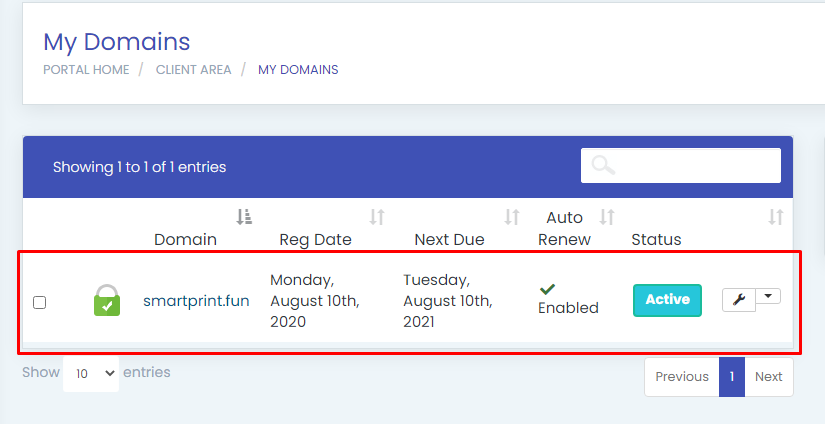
Domain locking is managed at your current registrar, the company where your domain is presently registered, not the new one you are moving to. Log in to your account there and locate the domain management or domain settings section for the specific domain you want to transfer.
Step 3: Find And Disable The Transfer Lock
Look for a setting labeled something like “Transfer Lock,” “Domain Lock,” or “Registrar Lock.” This is usually a simple toggle or checkbox. Switch it off, and save your changes.
Step 4: Give It Time To Fully Apply
Unlocking a domain is not always instant across every system involved. Allow up to an hour or two before assuming the change has fully processed, and avoid immediately attempting the transfer within seconds of toggling the lock off.
Step 5: Get Your Authorization Code While You Are There
Since you are already in your registrar’s dashboard, this is a good moment to also request your authorization code, sometimes called an EPP or Auth code. You will need this code at your new registrar to actually initiate the transfer, and it is worth grabbing it fresh rather than reusing an old one that may no longer be valid.
Step 6: Check For Other Reasons The Domain Might Still Be Locked
Occasionally, unlocking the standard transfer setting is not enough on its own, since a few other conditions can effectively keep a domain locked regardless.
- Domain age. ICANN rules block transfers within 60 days of initial registration.
- Recent transfer history. A domain transferred within the last 60 days cannot be transferred again yet.
- Recent registrant contact changes. Updating the name, organization, or email on a domain can trigger a fresh lock at many registrars, separate from the manual transfer lock toggle.
- Unpaid balance on the account. Some registrars will not release a domain for transfer if there is an outstanding invoice tied to it.
Step 7: Confirm The Unlock Actually Took Effect
Before heading to your new registrar to begin the transfer, run another WHOIS lookup to confirm the clientTransferProhibited status has cleared. If it still shows as locked after a reasonable wait, log back in and double-check the toggle actually saved correctly, since an unsaved change is a common, simple reason this step appears not to have worked.
Step 8: Proceed With The Transfer Once Unlocked
With the lock removed and your authorization code in hand, you are ready to begin the actual transfer process at your new registrar. Enter your domain and authorization code there, approve the confirmation email that follows, and your domain will move over typically within about five to seven days.
Common Mistakes To Avoid
- Forgetting to unlock the domain before attempting a transfer, causing an immediate and confusing rejection.
- Assuming the unlock happened instantly and retrying the transfer too soon before the change has propagated.
- Overlooking the 60-day rule, attempting to unlock and transfer a domain that is simply too new or too recently transferred to move yet.
- Not checking for an unpaid balance, which silently blocks the unlock or transfer regardless of the lock toggle status.
Unlocking a domain for transfer is usually a thirty-second task once you know exactly where to look. Confirm the lock status, toggle it off, grab your authorization code, and you are ready to move forward.
Ready to transfer your domain to a registrar that makes this process straightforward? Start your domain transfer with HoganHost and get support if anything along the way looks off.