


An email forwarder sends a copy of every message from one address to another. You can use one to route [email protected] to the sales inbox without creating a new account for them to log in to.
Forwarders are not mailboxes. Nothing is stored at the forwarding address, so the messages arrive in the destination inbox only.
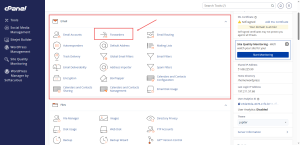
Open Forwarders
- Log in to cPanel.
- In the Email group, click Forwarders.
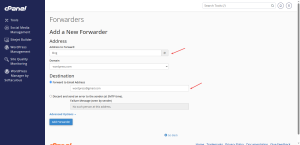
Add a Forwarder
- Click Add Forwarder.
- If your account has more than one domain, choose the domain you want to forward from.
- Type the part of the address before the at sign, such as sales.
- Choose Forward to Email Address.
- Type the full destination address where the messages should go.
- Click Add Forwarder.
Test the Forwarder
Send a test message from another address to the new forwarding address. Check that it arrives in the destination inbox. If nothing arrives, first check the spelling of both addresses.
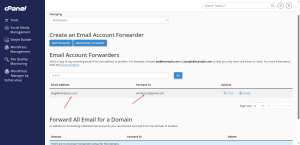
Avoid Catch-All Forwarders
A catch-all forwarder sends every message sent to any address on the domain, including misspelled ones, to one inbox. This is convenient but attracts a lot of spam, and it can hide real messages in the clutter. Use specific forwarders for the addresses you actually use.
Remove a Forwarder
Find the forwarder in the list and click Delete. Messages sent to that address will stop reaching the destination inbox right away, so tell the people involved first.
Running a business on several addresses? A business email plan from HoganHost keeps every address on one clean setup.