
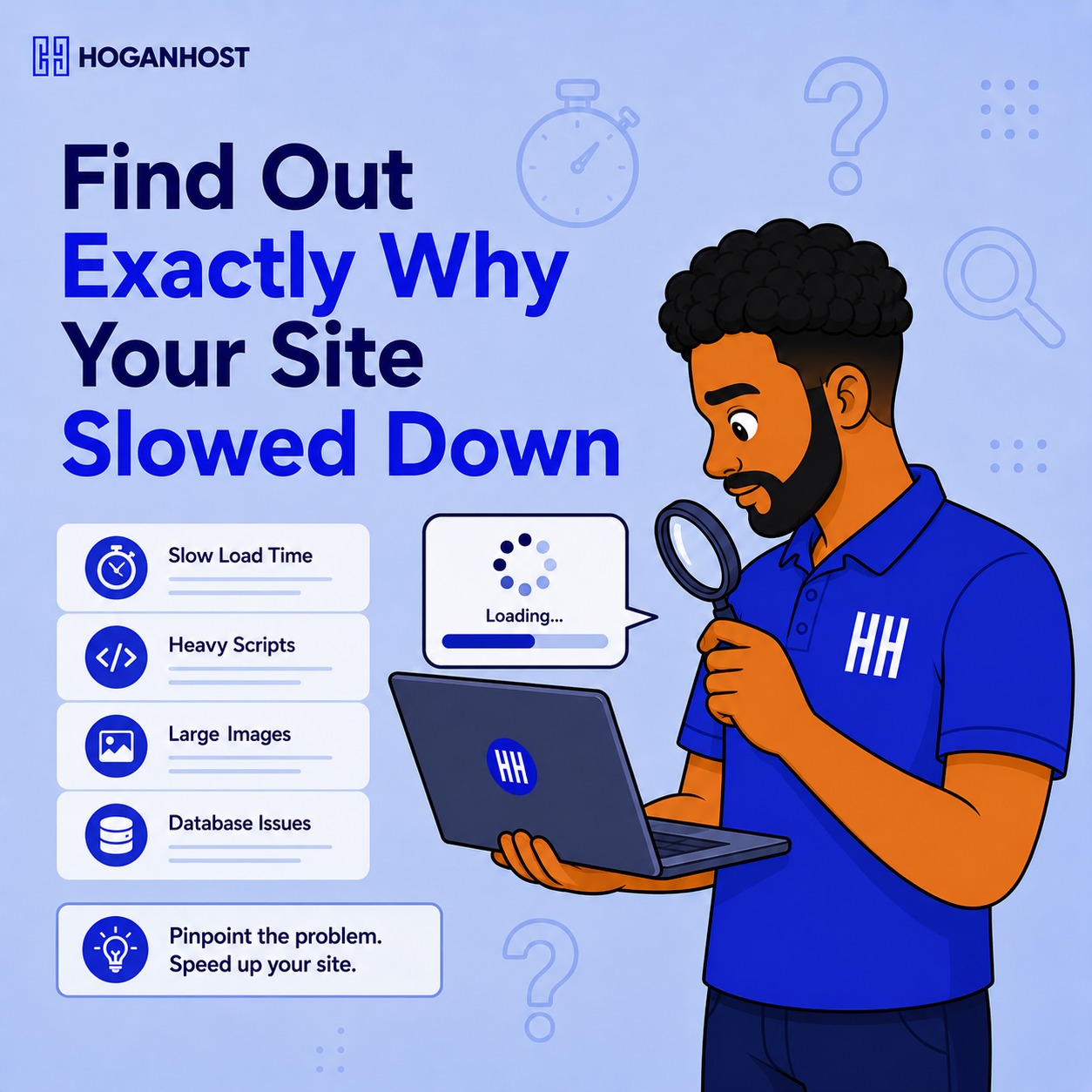
A website that has run smoothly for months and then slows down overnight is rarely a coincidence. Something specific changed, whether a new plugin, a traffic increase, or a server-side issue, and finding that specific cause is far more useful than guessing at random fixes.
Diagnosing sudden slowdowns methodically saves time and often reveals a fix that takes minutes rather than hours. Here is how to actually track down the cause.
Confirm the Slowdown Is Real and Consistent
Before diagnosing anything, rule out a temporary or localized issue. Test the website from a different device, a different network connection, and ideally ask someone in a different location to check as well. A slow personal internet connection or a temporary local network issue can mimic a website problem that does not actually exist on the server side.
Use a free page speed testing tool to get an objective load time measurement, rather than relying purely on how fast the site feels subjectively, since perception can be misleading.
Check What Changed Recently
Sudden slowdowns almost always trace back to a recent change. Review what happened in the days immediately before the slowdown started. A new plugin installation, a theme update, a significant content addition, or a traffic spike from a marketing campaign are all common triggers.
If a specific change lines up closely with when the slowdown began, that is the strongest lead to investigate first, rather than working through every possible cause from scratch.
Test With Plugins Disabled
For WordPress sites specifically, a poorly coded or conflicting plugin is one of the most common causes of a sudden, unexplained slowdown. Temporarily deactivate all plugins, then test the site’s speed. If performance improves significantly, reactivate plugins one at a time, testing after each one, until the specific culprit is identified.
This process takes a bit of patience but reliably isolates plugin-related slowdowns that would otherwise be difficult to diagnose through guesswork alone.
Check Server Resource Usage
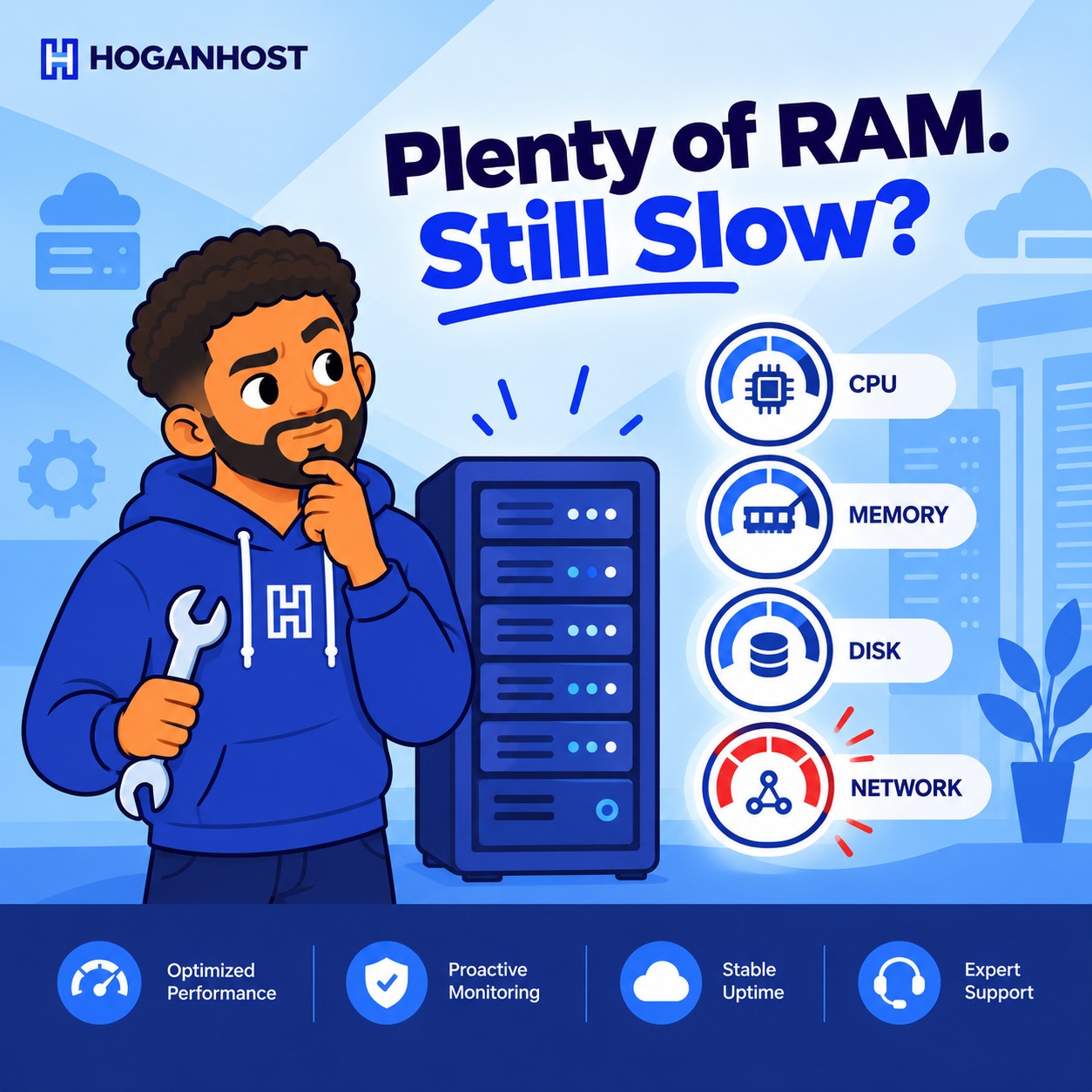
If the slowdown affects the entire site consistently rather than specific pages, check server resource usage through your hosting control panel. High CPU or memory usage, particularly if it has been climbing steadily, often points to either a genuine traffic increase the server cannot comfortably handle, or a runaway process consuming resources unexpectedly.
A shared hosting environment experiencing high resource usage from a neighboring account on the same server can also cause slowdowns unrelated to anything happening on your own website, which is worth raising with your hosting provider if server metrics look otherwise fine on your end.
Look at Database Performance
A growing website accumulates database bloat over time, unnecessary post revisions, spam comments, and orphaned data that were never cleaned up. This gradually slows down database queries, which can eventually cross a threshold where the slowdown becomes noticeable rather than gradual.
Database optimization plugins or direct database cleanup can address this, particularly for older websites that have never had this kind of maintenance performed.
Check for a Sudden Traffic Increase
A successful marketing campaign, a viral social media post, or unexpected press coverage can drive a sudden traffic spike that overwhelms a server not provisioned for that volume. Check analytics for unusual traffic patterns around the time the slowdown started.
If traffic genuinely increased significantly, the slowdown may not indicate a technical problem at all, simply a server that has outgrown its current resource allocation.
Rule Out a Security Issue
A compromised website, sometimes running malicious scripts or unauthorized processes in the background, can consume server resources and cause a noticeable slowdown without any obvious visual sign of a hack. Running a malware scan is a worthwhile step, particularly if no other clear cause has been identified.
Check Third-Party Scripts and Embeds
External scripts, such as chat widgets, tracking codes, or embedded content from third-party services, load additional resources every time a page loads. If one of these third-party services is experiencing its own slowdown or outage, it can drag down your website’s load time even though the actual cause sits entirely outside your own server.
Getting to a Fast, Stable Baseline
Once the specific cause is identified, whether a plugin, database bloat, a resource limit, or something else, the fix usually becomes straightforward. The diagnostic process itself is what most people skip, jumping straight to random fixes that may not address the actual root cause.
For businesses running on hosting that provides clear resource usage visibility and support to help pinpoint issues, HoganHost’s web hosting plans include monitoring tools and support to help diagnose exactly this kind of sudden performance change.
A methodical diagnosis, rather than a guess, turns a frustrating mystery slowdown into a specific, fixable problem.