

Web Disk makes your hosting account appear as a drive on your computer. Once it is connected, you can drag files in and out of a folder as if it sat on your desk. It is a handy option, though large transfers usually run more smoothly over FTP or through File Manager.
What Web Disk Does
Web Disk uses a standard called WebDAV. This standard lets your computer treat a folder on a web server like a local drive. You do not need a separate FTP program, but you will need your Web Disk login details.
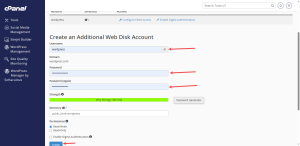
Create a Web Disk Account
- Log in to cPanel.
- In the Files group, click Web Disk.
- Create a Web Disk account by choosing a login name and a strong password.
- Choose the folder this account can reach. Limit it to one site’s folder when you can.
- Save the account.
Find the Connection Address
After you create the account, the Web Disk page shows the address you need to connect. Copy it somewhere safe. You will paste it into your computer’s settings in the next step.
Connect on Windows or Mac
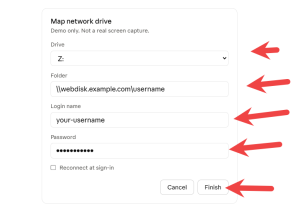
On Windows, open File Explorer, right-click This PC, and choose Map network drive. Paste the address, then enter the Web Disk login name and password. On a Mac, open Finder, choose Go, then Connect to Server, and paste the address.
Menu names can change between versions of Windows and macOS, so look for the closest match if your screen differs.
Keep Web Disk Secure
Create a separate Web Disk account for each person who needs access, and remove accounts that are no longer used. Anyone with the login can reach the folder it covers, so keep each account limited to what it needs. If your site has an SSL certificate, your connection is encrypted, which protects your password on the way in.
If you need a host that keeps your files safe and easy to reach, explore HoganHost’s cPanel hosting plans.