


Email takes up space. Every message, attachment, and folder counts against the storage limit you set for each account. When a mailbox fills up, new messages can bounce, and the sender may get a message saying the inbox is full.
Checking usage regularly keeps your mail flowing and stops surprises at busy times.
Check Usage in Email Accounts
- Log in to cPanel.
- In the Email group, click Email Accounts.
- Look at the summary at the top of the page, which shows the total space used by your email accounts.
- Use the Near quota tab to see which accounts are close to their limit.
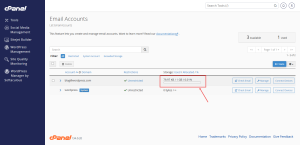
Read Each Account’s Usage
Click Manage next to an account to see its storage use and limit. If the account is close to full, you can raise the limit from the same page, or ask the owner to clear old messages.
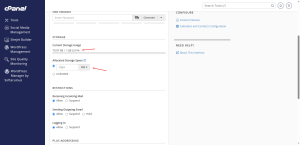
Check the Whole Account
The Disk Usage tool, in the Files group, shows how much space your mail takes up across the account. Use it when the account as a whole is running low, since email can be a large share of your total storage. The Day 4 guide covers how to read that page.
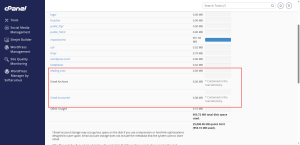
Clear Space the Right Way
Deleting messages from the Inbox does not always free space right away. Empty the Trash and Junk folders as well. Large attachments are often the biggest cause of full mailboxes. Ask senders to share large files through a download link where possible.
Before you delete a large set of messages, make sure you have a copy you need. Deleted mail is usually gone for good.
If your team’s mailboxes keep growing, a business email plan from HoganHost can give each user the room they need.