

An autoresponder sends an automatic reply to anyone who emails you. It is useful when you are away on holiday, closed for a public holiday, or waiting to reply to a busy inbox. The sender gets a quick acknowledgement, and you do not have to type it again.
Set one up for the times you need it, then turn it off once you are back.
Open Autoresponders
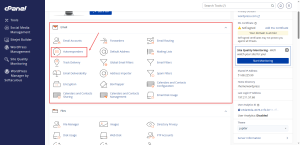
- Log in to cPanel.
- In the Email group, click Autoresponders.
Add an Autoresponder
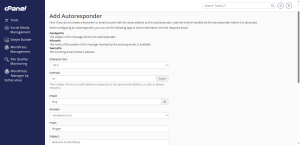
- Click Add Autoresponder.
- Choose the email address that should send the reply, such as [email protected].
- Set the interval. This is the number of hours before the same sender receives another automatic reply. A value of 24 is common.
- Type a subject line that tells the sender what to expect.
- Write the body of the message in plain, friendly language.
- Leave the character set as it is unless you know you need to change it. UTF-8 suits most messages, including those with accents or local characters.
- Click Create or Save.
Keep the message short. Say when you will reply, and give a second contact if the matter is urgent.
Test the Reply
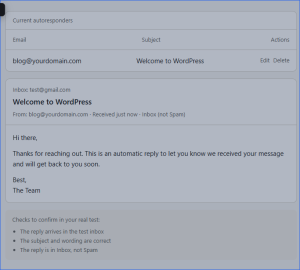
Send an email from a different address to the autoresponder account. Check that the reply arrives, that the subject and wording look right, and that the reply is not caught in the spam folder.
Turn It Off When You Return
Autoresponders keep replying until you remove them. Go back to the Autoresponders page, find the entry, and delete it. Forgetting this is one of the most common reasons customers receive a holiday message weeks after the holiday ends.
Need a professional address to send those replies from? A business email plan from HoganHost is the place to start.