


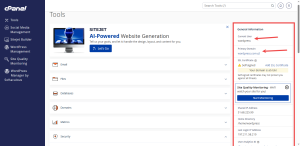
The cPanel General Information panel is the box in the right-hand column of your home screen. Most people glance past it, but it holds details you will need when you contact support or set up your domain.
This guide explains each part of the panel and where to find more detail.
What the Panel Shows
- Your username, the account name you use to log in.
- Your primary domain, the main website linked to this account.
- A link to Server Information.
Open Server Information
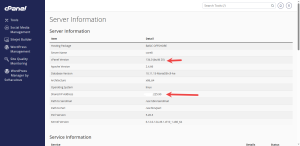
Click the Server Information link in the General Information panel. The page it opens shows:
- The IP address of your hosting account
- Software version numbers, including the cPanel version
- Other features of your account
Why These Details Matter
Support teams often ask for your username, primary domain, or cPanel version. Having them ready speeds up the answer.
The IP address matters too. When you point a domain to your hosting account, you may need this number for your DNS records.
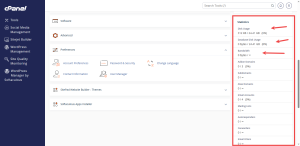
Check the Statistics Panel Below It
The Statistics panel sits under General Information. It shows your CPU use, memory use, and bandwidth transfer.
If a website suddenly feels slow, look here first. A spike in CPU or memory use is often the first clue.
Running out of resources is a common reason sites slow down. If your numbers keep climbing, HoganHost’s hosting plans can give your site more room to grow.