


Setting Up Domains in cPanel
A domain name is your address on the internet, like yourbusiness.com.ng. Your cPanel account can hold more than one domain, and the Domains tool is where you add and manage all of them.
Before you start, you should know three types of domains. Your primary domain is the one you signed up with. An addon domain is a second, separate website on the same account, with its own folder. An alias, also called a parked domain, is an extra name that shows the same site. The next two guides cover subdomains and aliases in more detail.
Find the Domains Tool
- Log in to cPanel.
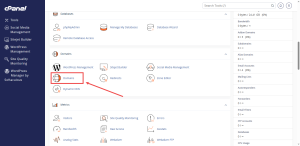
- On the home screen, find the Domains group.
- Click the Domains icon.
Read the Domain List First
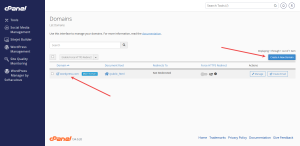
The Domains page lists every domain already attached to your account. Look at it before you add anything. This stops you from adding the same domain twice.
Add a New Domain
- Click Create A New Domain at the top right of the page.
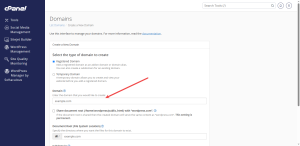
- Type the full domain name in the Domain box, for example, shop-example.com.ng. Leave out the web prefix and www.
- Check the document root. This is the folder on the server where the site’s files will live. cPanel suggests a folder name based on the domain, and you can usually leave it as it is.
- Click the button that submits the form.
Expect a Short Wait
Once the domain is added, it may not load your site right away. Domain names are matched to server addresses through DNS, the system that connects a name to where your site lives. The DNS step is covered in the Day 3 guides. Until then, you may see an error or a blank page. This is normal.
Need a domain name before you add it here? You can register a domain with HoganHost and manage it from the same account.